General FAQ

Frequently asked questions about Balance Budget app and budgeting for couples.

General FAQ

Find answers to the most frequently asked questions about Balance Budget. Can’t find what you’re looking for? Contact support.

Getting Started

What is Balance?

Balance is a budgeting app designed for couples. It helps you and your partner:

  • Connect your bank accounts
  • Track spending automatically
  • Create and manage budgets together
  • Categorize transactions
  • Stay financially coordinated

Key features:

  • Real-time bank sync via Plaid
  • Shared budgets for couples
  • Individual profiles
  • Mobile apps (iOS & Android) and web
  • Secure, encrypted data

Is Balance really for couples?

Yes, but you can also use it solo!

For couples:

  • Share one account with separate profiles
  • Both see all transactions and budgets
  • Real-time updates for coordination
  • Individual profile views

For individuals:

  • Works great for single-person budgeting
  • Just create one profile
  • All the same budgeting features

How is Balance different from other budget apps?

Built specifically for couples:

  • Not an afterthought or add-on
  • Designed from day one for two people
  • Shared view of all finances
  • Better coordination features

Compared to alternatives:

  • Mint (discontinued): Balance is actively developed and supported
  • YNAB: More affordable, simpler to learn
  • EveryDollar: Better bank sync, couples-focused
  • Honeydue: More comprehensive budgeting tools
  • Monarch: Lower cost, simpler interface

Unique to Balance:

  • Focus on couples from the start
  • Simple, clear interface
  • Affordable pricing
  • Modern tech stack
  • Active development

How much does Balance cost?

Free Trial:

  • 30 days free - Full access to all features
  • No credit card required - Just sign up and start
  • Automatically downgrades - To free plan after 30 days (no surprise charges)

Premium Plans:

  • Monthly: $5.99/month
  • Annual: $59.99/year ($4.99/month - save 17%)
  • What you get: Connect up to 10 bank accounts, unlimited transactions, all features

Free Plan:

  • $0 forever
  • Limitation: Cannot connect bank accounts (manual entry only)
  • Good for: Trying Balance, manual budgeters, privacy-focused users

Learn more about pricing →

Using Balance

Can I use Balance on multiple devices?

Yes! Use Balance on as many devices as you want:

  • iPhone
  • Android phone
  • iPad
  • Android tablet
  • Mac (web browser)
  • Windows PC (web browser)
  • Chromebook
  • Any device with a web browser

Everything syncs automatically between all devices.

Does Balance work on desktop/computer?

Yes! Use the web version:

  • Visit app.balancebudget.app
  • Works in any modern browser (Chrome, Firefox, Safari, Edge)
  • Same account as mobile apps
  • All data syncs automatically

Web is great for:

  • Initial setup (larger screen)
  • Detailed budget planning
  • Reviewing lots of transactions
  • When you don’t have your phone

Learn more about web vs mobile →

Can my partner and I use different devices?

Absolutely! Most common setup:

  • You use iPhone, partner uses Android (or vice versa)
  • You use mobile, partner uses web
  • Any combination works!

All data syncs in real-time between devices and users.

How many bank accounts can I connect?

Depends on your plan:

Free Plan: 0 accounts (manual transactions only)

Premium (Monthly or Annual): Up to 10 accounts total

What counts as an account:

  • Each checking account = 1
  • Each savings account = 1
  • Each credit card = 1
  • Example: 2 checking + 1 savings + 2 credit cards = 5 accounts

Need more than 10? Contact support - we may be able to help!

Learn more about account limits →

Bank Connections

Is it safe to connect my bank?

Yes, Balance is secure.

How it works:

  • Balance uses Plaid (same as Venmo, Robinhood, Betterment)
  • Bank-level encryption (AES-256, TLS 1.3)
  • Read-only access - Cannot transfer money
  • Your password never leaves Plaid - Balance never sees it

What Balance can do:

  • ✅ View transactions
  • ✅ See account balances
  • ✅ Read account names

What Balance CANNOT do:

  • ❌ Transfer money
  • ❌ Pay bills
  • ❌ Change account settings
  • ❌ Access anything but transactions

Learn more about security →
Learn more about Plaid →

Which banks does Balance support?

Over 12,000 US banks and financial institutions including:

  • All major banks (Chase, Bank of America, Wells Fargo, Citi, etc.)
  • Credit unions
  • Online banks (Ally, Marcus, Capital One, etc.)
  • Credit card companies (Visa, Mastercard, Amex, Discover)
  • Investment accounts (some)
  • PayPal, Venmo

If your bank isn’t listed: You can request Plaid add it, or use manual transaction entry.

See full list of supported banks →

How often do transactions sync?

Automatic syncing:

  • 1-2 times per day - Balance checks for new transactions
  • Bank-dependent - Banks report to Plaid on their schedule
  • 2-24 hours - Typical time from purchase to appearing in Balance

Factors affecting speed:

  • Your specific bank (some are faster than others)
  • Transaction type (debit faster than credit)
  • Time of day (weekends slower)
  • Bank processing times

You can also:

  • Pull to refresh - Manually sync anytime
  • Background sync - Keeps data updated automatically

Learn more about sync timing →

What if I don’t want to connect my bank?

You can use Balance without bank connections!

Manual transaction entry:

  • Add transactions manually as they happen
  • Enter amount, merchant, category, date
  • Works great for cash purchases
  • Privacy-focused option

Limitations:

  • More work (manual entry for each transaction)
  • May miss transactions
  • No automatic syncing
  • Requires discipline

Note: Free plan only allows manual transactions (no bank connections).

Budgeting

How do budgets work in Balance?

Budget Categories:

  1. Create categories - Groceries, Rent, Dining Out, etc.
  2. Set monthly amounts - How much you plan to spend
  3. Track spending - Transactions reduce available budget
  4. Stay under budget - See progress throughout month
  5. Reset each month - Fresh start every month

Budget types:

  • Income categories - Salary, side hustle, etc.
  • Expense categories - Where money goes

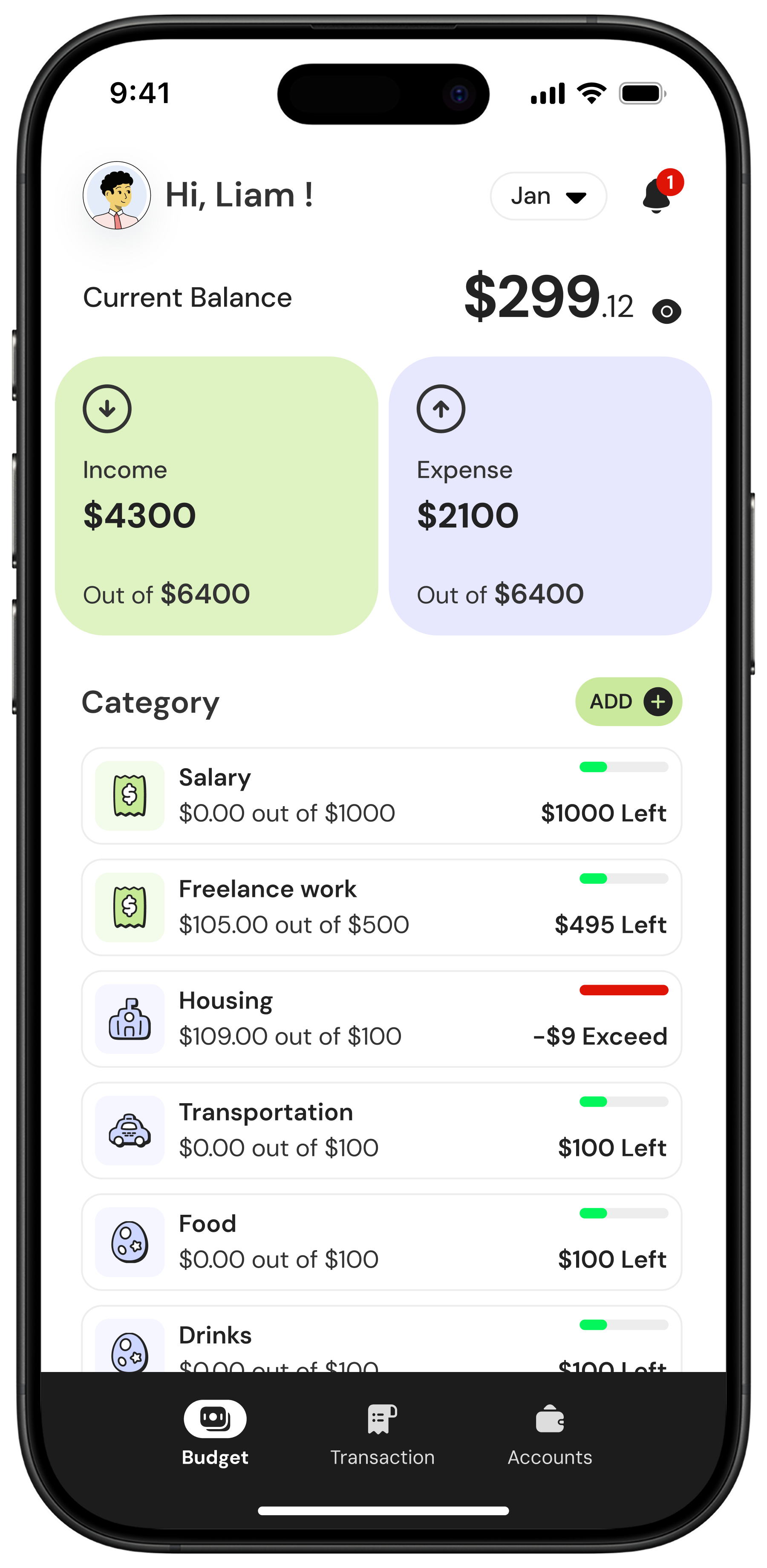
Visual tracking:

  • Progress bars show usage
  • Color codes (green/yellow/red)
  • Current balance vs budgeted

Learn more about budgeting →

Do budgets reset every month?

Yes, budgets reset on the 1st of each month.

What resets:

  • Spending amounts go back to $0
  • Budget allocations stay the same (unless you change them)
  • Progress bars restart

What doesn’t reset:

  • Your transactions (history preserved)
  • Your categories (stay the same)
  • Your budget amounts (same allocations unless you change)

No “rollover” - Unspent money doesn’t carry to next month automatically.

Learn more about monthly reset →

Can I change my budget amounts mid-month?

Yes! Adjust anytime:

  • Go to Budget tab
  • Tap “Manage”
  • Edit any category amount
  • Changes take effect immediately

Common reasons to adjust:

  • Unexpected expense came up
  • Underestimated a category
  • Got extra income
  • Realized you budgeted too much

Best practice: Review and adjust budgets based on actual spending patterns.

Transactions

How do I categorize transactions?

Simple process:

  1. Go to Transactions tab
  2. Tap uncategorized transaction
  3. Tap “Select Categories”
  4. Choose the appropriate category
  5. Done! Transaction now counted in budget

Bulk categorization:

  • Long press transaction
  • Select multiple
  • Assign same category to all

Split transactions:

  • Assign multiple categories to one transaction
  • Each category gets portion of amount
  • Example: Target run split between Groceries, Household, Clothing

Learn more about categorizing →

What if a transaction is in the wrong category?

Easy to fix:

  1. Tap the transaction
  2. Tap current category
  3. Select new category
  4. Budget automatically updates

Can’t change:

  • Bank-synced transaction amounts (set by bank)
  • Transaction dates (set by bank)
  • Merchant names (set by bank)

Can change:

  • Category
  • Split amounts

Learn more about editing transactions →

Can I add transactions manually?

Yes! Great for:

  • Cash purchases
  • Pending transactions you want to budget now
  • Quick entry before bank syncs

How to add:

  1. Go to Transactions tab
  2. Tap + button
  3. Enter: merchant, amount, date, category
  4. Tap “Save”

Manual transactions:

  • Fully editable
  • Can delete
  • Can change all details

Learn more about manual transactions →

Couples Features

How do we budget together?

Shared account approach:

  1. One person creates the Balance account
  2. Add partner profile - In settings
  3. Both use same account - Share login credentials
  4. Both see everything - All transactions, budgets, accounts
  5. Real-time sync - Changes appear instantly

Each person can:

  • Categorize transactions
  • Add manual transactions
  • View budgets
  • Connect bank accounts (with shared account credentials)

Learn more about couples budgeting →

Do we need separate Balance accounts?

No, share one account!

Why share one account:

  • That’s the whole point of Balance!
  • Both see all spending
  • Coordinate on budget together
  • Real-time updates
  • True shared finances

Profiles within account:

  • Each person can have a profile
  • Switch between profile views
  • But see same data
  • Just different visual representation

Separate accounts only if:

  • You want completely separate finances
  • Not budgeting together
  • Each managing own money independently

Can we each have our own profile?

Yes! Profiles work like this:

What profiles do:

  • Show whose transaction it might be
  • Personalization (avatars, names)
  • Individual view preferences

What profiles DON’T do:

  • Hide data from each other
  • Create separate budgets
  • Allow different bank connections

Both profiles see:

  • Same transactions
  • Same budgets
  • Same accounts
  • Same everything

Think of it as: Views into the same shared financial data, not separate accounts.

Learn more about profiles →

Privacy & Security

Can Balance employees see my transactions?

Very limited access for support only:

Support staff can:

  • See account status (with your permission)
  • Help troubleshoot issues
  • Verify identity for password resets

Support staff cannot:

  • See transaction details without explicit permission
  • Move money
  • Change budgets
  • Access account without reason

All access is:

  • Logged and monitored
  • Read-only
  • Only when helping with support request
  • Never shared with marketing or third parties

Learn more about security →

What happens to my data if I cancel?

If you downgrade or cancel:

Data retention:

  • Active: Data kept while account active
  • After cancellation: Retained for 90 days
  • After 90 days: Automatically deleted (unless you reactivate)

Reactivating:

  • Within 90 days: All data restored
  • After 90 days: Data permanently deleted, start fresh

Deleting account:

  • Contact support to request deletion
  • Permanently removes all data
  • Cannot be undone

Can I export my data?

Currently: No automated export feature

To get your data:

Data portability: We support your right to your data and will help with exports.

Technical Issues

The app isn’t working. What should I do?

Quick fixes to try first:

  1. Restart the app

    • Close completely and reopen
  2. Check internet connection

    • Wi-Fi or cellular data working?
  3. Update the app

    • Check App Store or Play Store for updates
  4. Restart your device

    • Turn phone off and back on
  5. Clear cache (Android)

    • Settings > Apps > Balance > Storage > Clear Cache
  6. Reinstall app

    • Delete and redownload
    • Log back in (data is safe in cloud)

Still not working? Contact support@balancebudget.app

More troubleshooting →

How do I report a bug?

Contact support:

  • Email: support@balancebudget.app
  • Include:
    • Description of the bug
    • What you expected to happen
    • What actually happened
    • Device (iPhone 15, Samsung S23, etc.)
    • App version (Settings > About)
    • Screenshots if helpful

We appreciate bug reports! Helps us improve Balance for everyone.

Getting Help

How do I contact support?

Email: support@balancebudget.app

Response time:

  • Usually within 24 hours
  • Faster during business hours (9 AM - 5 PM Pacific)
  • Slower on weekends and holidays

What to include:

  • Clear description of issue
  • What you’ve already tried
  • Device and app version
  • Screenshots if relevant

In-app:

  • Settings menu > Help & Support
  • Opens email to support

Where can I find more help?

Help Documentation:

  • This help site: balancebudget.app/help/
  • Comprehensive guides
  • Step-by-step instructions
  • Troubleshooting articles

Contact Support:

Feature Requests:

  • Email support with suggestions
  • We read and consider all feedback
  • Help shape Balance’s future

Coming Soon

What new features are you working on?

Currently in development:

  • 🔔 Push notifications - Transaction and budget alerts
  • 🌙 Dark mode - For night use
  • 📊 Enhanced reports - More spending insights
  • 📱 Widgets - Home screen budget view
  • 🤖 2FA - Two-factor authentication
  • 🎯 Goals - Savings goals tracking

Want early access? Email support@balancebudget.app to join beta program!

Can I request a feature?

Yes, please do!

How to request:

  1. Email support@balancebudget.app
  2. Subject: “Feature Request”
  3. Describe the feature
  4. Explain how you’d use it
  5. Why it would help your budgeting

We read every request and prioritize based on user demand and feasibility.

Common Concerns

What if my partner and I break up?

Options:

  1. One person keeps account

    • Delete other person’s profile
    • Change password
    • Continue using
  2. Split into separate accounts

    • One person creates new account
    • Decide who keeps existing account
    • Can’t split data (each starts fresh or keeps existing)
  3. Both create new accounts

    • Start fresh individually
    • Delete shared account

No automatic “split” feature - Contact support if you need help with this situation.

Is Balance available outside the US?

Currently: US only

International expansion:

  • Planned for future
  • Depends on bank connections available in other countries
  • Starting with Canada and UK potentially

If you’re international:

  • Can use with US banks
  • Manual transaction entry works anywhere
  • Web app accessible globally

Want to be notified? Email support@balancebudget.app to join interest list for your country.

Still Have Questions?

Can’t find your answer?

👉 Browse help docs: balancebudget.app/help/
👉 Contact support: support@balancebudget.app
👉 Check billing FAQ: Billing FAQ →
👉 Check technical FAQ: Technical FAQ →

We’re here to help! 💙

Was this article helpful?

Still need help?

Can't find what you're looking for? Our support team is here to help!

Contact Support