Budgeting
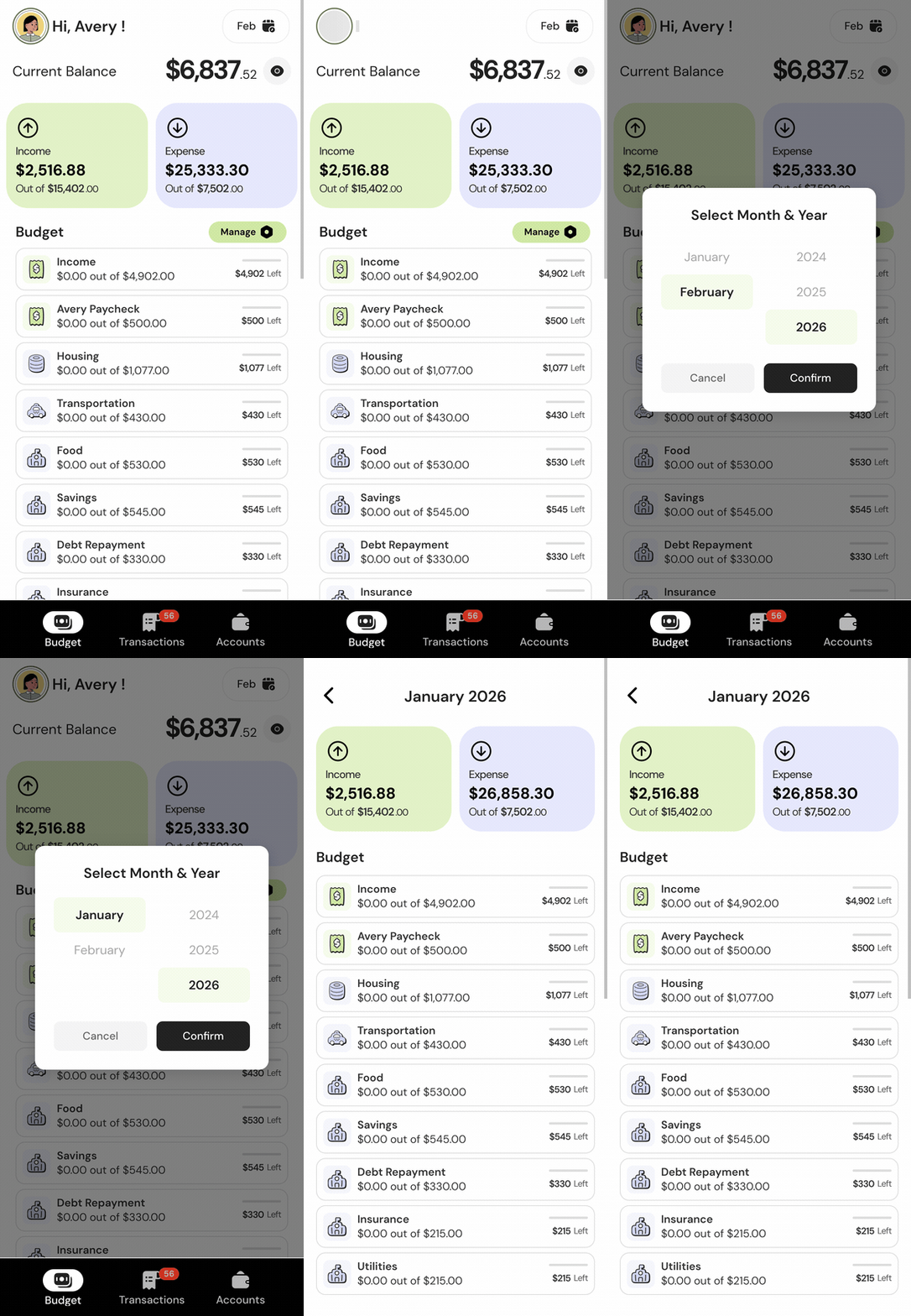
Your budget in Balance is organized into income categories and expense categories. Set a monthly amount for each, and Balance tracks your progress as transactions come in.
Creating Categories
- Go to the Budget tab
- Tap Add Category
- Choose Income or Expense
- Name the category, set the monthly amount, and pick an icon
- Tap Save
Create income categories first (salary, freelance, side gig), then expense categories (rent, groceries, gas, subscriptions). You can pick from a set of icons to make categories easy to identify at a glance.
Allocation Percentage
At the top of your budget, you’ll see what percentage of your income is allocated to expense categories.
- Under 100%: You have money left to allocate to categories
- Exactly 100%: Every dollar of income is assigned to a category
- Over 100% (shown in red): You’re budgeting more than you earn. Reduce expense amounts or increase income categories
This gives you a quick snapshot of whether your budget is balanced.
Viewing Spending by Category
Tap any category on the Budget or home page to see all transactions in that category for the current month. This is the fastest way to see where your money went within a specific category.
Carry-Over / Rollover
Enable carry-over on any category to roll unspent budget forward to the next month. This works like a sinking fund.
- Unspent money adds to next month’s available amount
- Overspending carries forward as a deficit
- Toggle it per category in the category settings
This is great for irregular expenses like annual insurance premiums, car maintenance, vacations, or holiday gifts. Budget a small amount each month and let it build up until you need it. See handling variable income for more strategies.
Reordering Categories
- Go to the Manage Budget page
- Tap Reorder
- Drag categories into your preferred order
- Save your changes
Your custom order is reflected on the Budget and home pages.
When Income Exceeds Your Budget
If you earn more than budgeted (an unexpected bonus, extra commission), the extra income shows as over-budgeted in your income category. However, it does not automatically increase your spending room.
To use the extra money, you need to:
- Increase the income category amount to match what you actually earned
- Increase one or more expense category amounts to allocate the extra
This keeps your budget intentional. Every dollar gets a job only when you decide.
Budget Amounts Persist Month to Month
When you change a category amount, that new amount carries forward to future months. If you bump your phone budget from $50 to $60 in January, February will also start at $60. If it was a one-time adjustment, change it back manually for the next month.
Budget History
Tap the month name at the top of the Budget page to browse previous months. You can flip back to any past month to see your budget amounts, spending, and category breakdowns for that period.
This is useful for spotting trends, checking how a category performed over time, or reviewing months where spending felt off. Your current month’s budget is always the default view.